How to Merge Duplicate Contacts Without Losing Important Info
According to a survey by Handy Recovery Advisor, conducted in October 2024 across 1,000 U.S. adults, only 33% of users back up their data regularly, and yet 68% of those who have already experienced data loss now back up consistently. Most people learn the hard way.
That pattern plays out constantly with contacts. Someone decides to clean up their address book, starts merging duplicate entries, and realizes mid-way through that they've deleted a phone number that didn't exist in the entry they kept. The original is gone, the merged result is incomplete, and there's no clean way back without a backup.
Merging duplicate contacts is one of the most useful things you can do for your contact list. Done carefully, it eliminates confusion, prevents misdirected calls and messages, and keeps your address book clean across every app that depends on it. Done carelessly, it can wipe out phone numbers, emails, notes, and other details that live in only one of the duplicate entries.
This guide walks through how to merge duplicate contacts safely, from preparation through platform-specific steps to best practices for keeping the list clean afterward.
Why Duplicate Contacts Appear in the First Place
Before merging anything, it helps to understand what created the duplicates, because that determines whether they'll reappear after you clean them up.
The most common causes:
- Syncing multiple accounts simultaneously. When Google Contacts, iCloud, and Outlook all sync to the same device, each one writes its own version of your contacts, creating overlapping entries from different sources.
- Importing contacts from multiple platforms. Pulling in contacts from a CSV file, a CRM, a messaging app, or a previous device often duplicates entries that already exist, especially when name or number formatting differs between sources.
- Manual entry without checking first. Saving a contact without searching for an existing entry is the most common cause of individual duplicates.
- Third-party app interference. Apps with contacts write permission sometimes add their own version of your contacts alongside the originals.
If the underlying cause isn't addressed, merged contacts will reappear. Fixing the source is as important as running the merge.

Preparing to Merge Contacts Safely
Safe contacts merge duplicates, and work starts before you touch a single entry. Three steps done upfront prevent the vast majority of merge-related data loss.
- Back up your full contact list before doing anything else. Export your contacts to a VCF or CSV file, or use a dedicated backup tool. If a merge goes wrong, an important number gets dropped, a note disappears, or two entries that shouldn't have been combined are now one, a backup is the only reliable way to restore what was lost. Sync.me's contacts backup feature creates a recoverable snapshot of your address book that you can restore if anything goes wrong during cleanup.
- Review duplicates before merging, not after. Before letting any tool auto-merge, open a few pairs side by side and check what each entry contains. One may have a mobile number, the other a work email. One may have a photo and a note you added two years ago. The merged result needs to keep all of it, and automated tools don't always handle that correctly if the fields conflict or use different labels.
- Sync all your devices and accounts first. If your phone, tablet, and cloud account aren't in sync before you start merging, you risk re-creating duplicates immediately after the merge. Any device that still holds the pre-merge version of your contacts will push those old entries back the next time it syncs. Complete a full sync across all connected accounts before starting.
How to Merge Duplicate Contacts on Smartphones
On iOS
The native Contacts app on iPhone does not have a built-in bulk duplicate finder, but iCloud does. To use it, open a browser and go to iCloud.com, sign in, then open Contacts. In the bottom-left toolbar, click the card icon and select "Look for Duplicates." iCloud will identify matching entries and prompt you to review and merge them.
For individual merges directly on the iPhone, open the Contacts app, find the entry you want to keep, tap Edit, then scroll to the bottom and tap "Link Contacts." Select the duplicate entry to link, then tap Link. This combines both entries into one card while preserving fields from both.
Tips for preserving data on iOS:
- Before merging, open each duplicate entry individually and screenshot or note any fields that exist in only one entry, especially notes, secondary numbers, and custom labels.
- After merging, verify the result immediately by opening the merged contact and confirming all phone numbers, emails, and notes are present.
- If something is missing, undo is not available in the native Contacts app, which is exactly why the backup step matters.
On Android
Google Contacts is the most reliable tool for merging duplicates on Android. Open the Google Contacts app or visit contacts.google.com in a browser. Tap "Fix and manage" in the left sidebar, then select "Merge and fix." Google will surface contacts it considers duplicates and allow you to review and confirm each merge.
For manual merges, open a contact, tap the three-dot menu, and select "Merge." You can then search for the second entry to combine it with. Google Contacts is generally good at preserving all fields from both entries, but always verify the merged result, especially for contacts with multiple phone numbers or custom field labels.
Tips for preserving data on Android:
- Use Google Contacts via browser for bulk merging rather than the native phone app, as it gives a clearer view of what each entry contains before the merge.
- After completing a bulk merge, spot-check at least five to ten results to confirm that the data was retained correctly.
- If your phone uses a manufacturer contacts app (Samsung, Xiaomi, etc.) alongside Google Contacts, ensure you're merging in the Google account layer, not locally, so the result syncs correctly across all devices.
How to Merge Duplicate Contacts in Email and Cloud Accounts
Google Contacts
Go to contacts.google.com and select "Fix and manage" from the left sidebar, then "Merge and fix." Google Groups contacts it identifies as likely duplicates and shows a preview of the merged result. Review the preview before confirming, especially for contacts with multiple numbers or emails; Google may not always select the right primary entry.
After merging, manually verify a sample of merged contacts. Pay particular attention to contacts that had different number formats (country code vs. local) across the two entries, as these sometimes result in incomplete merges.
Microsoft Outlook
In Outlook desktop, go to the People section, select a contact, and in the toolbar, click "Edit." Outlook also has a "Clean Up Contacts" feature accessible via File that flags potential duplicates. For each pair identified, Outlook shows both entries side by side and lets you choose which fields to keep before confirming the merge.
Outlook's side-by-side comparison view is one of the better-designed how to merge duplicate contacts interfaces for users who need granular control over which data is retained. Use it rather than auto-merging, especially for contacts with notes, custom fields, or multiple phone numbers.
iCloud
As noted in the iOS section, iCloud.com's Contacts tool includes a "Look for Duplicates" option in the card view. It works well for detecting near-identical entries but may miss duplicates with different name formatting. After running the automatic finder, manually scroll through your list to catch any remaining near-duplicates that the tool didn't flag.
Using Third-Party Tools to Merge Duplicate Contacts at Scale
For address books with hundreds of duplicates, particularly common after a device migration, a large import, or years of accumulating entries from multiple sync accounts, native platform tools can be slow and tedious. Third-party apps designed specifically for contact deduplication handle bulk merges faster and often more accurately.
When evaluating any tool for contacts merge duplicates work, look for:
- Automated duplicate detection with adjustable sensitivity. A good tool should flag both exact duplicates (identical names and numbers) and fuzzy matches (same person, slightly different formatting).
- Merge preview before confirmation. You should be able to see exactly what the merged contact will look like before committing. Tools that auto-merge without preview are higher risk.
- Backup or undo capability. The best tools create a snapshot before merging, so you can roll back if something goes wrong.
- Cross-platform support. If your contacts span Google, iCloud, and Outlook, the tool should be able to handle all three sources rather than requiring separate cleanup on each platform.
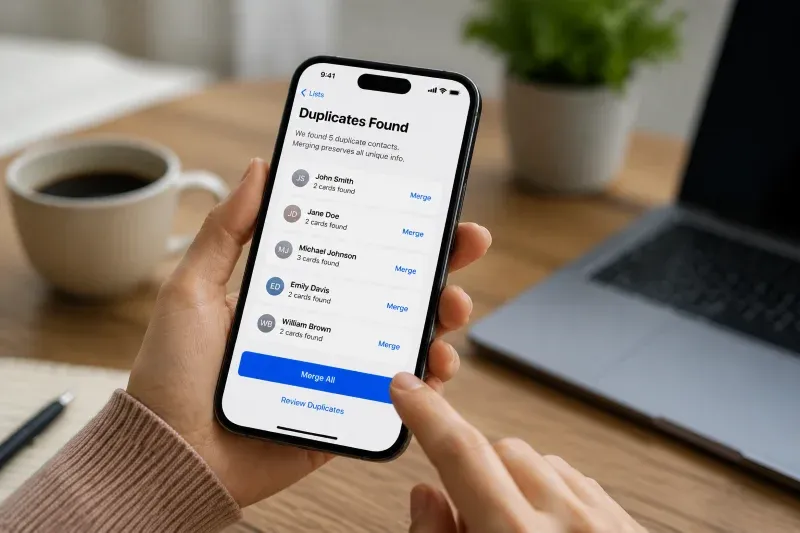
Sync.me’s Merge Duplicate Contacts feature identifies duplicate entries across your entire address book, lets you review and confirm merges before applying changes, and automatically preserves all key information, including phone numbers, emails, notes, and linked profile photos from social accounts. For large-scale merges, it’s recommended to start with a small batch of 20–30 contacts to ensure everything merges correctly before processing the full address book.

Keeping Your Contact List Clean After Merging
A merge is a one-time fix. These habits are what prevent the list from reverting to the same state within a few months.
- Maintain one primary sync account. Designate a single cloud account, Google, iCloud, or another, as the authoritative source for all contacts. Disable contacts sync on all other accounts. This removes the most common source of recurring duplicates.
- Search before adding new contacts manually. Three seconds of searching before saving a new entry is enough to catch the majority of manual duplicates before they're created.
- Review for new duplicates once a quarter. A quarterly check, using the platform tools or a dedicated app, catches duplicates early before they accumulate. This is far less work than a semi-annual deep clean.
- Standardize formatting when you add contacts. Decide on a consistent format for names (First Last vs. Last, First), phone numbers (with or without country code), and email labels (home vs. personal). Consistent formatting reduces the chance that two entries for the same person are treated as different records by sync engines.
- Back up after every major cleanup. Once you've finished a merge pass, create a fresh backup immediately. This gives you a clean restore point before the next round of sync activity begins.
A Clean Contact List Is One Careful Merge Away
The risk with merging duplicate contacts isn't the merge itself; it's merging without preparation. A backup, a quick review of what each entry contains, and a full sync before starting are enough to protect you from the most common sources of data loss during cleanup.
Once the merge is complete and the underlying sync setup is simplified, most people find that duplicates stop accumulating at anything like the previous rate. The address book becomes something you can actually trust: every call reaches the right person, every message goes to the current number, and every app that depends on your contacts works from accurate data.
Back up your contacts, then merge and clean with Sync.me
Prevent misdirected calls, lost emails, and data confusion by merging duplicate contacts safely. Back up your address book, use Sync.me to identify and merge duplicates, and maintain a clean, reliable contact list across all devices. Start organizing your contacts now.
Frequently Asked Questions
Can merging duplicate contacts accidentally delete emails, phone numbers, or notes?
Yes, if you merge without reviewing both entries first. When you merge duplicate contacts, fields that exist in only one entry may be dropped if the tool doesn't handle conflicting or supplementary data correctly. The safest approach is to back up your full contact list before starting, review both entries side by side before merging, and verify the result immediately after to confirm all fields were retained.
How do I merge duplicate contacts across multiple devices without creating new duplicates?
Complete a full sync across all your connected devices and accounts before merging. If you merge on one device while another is out of sync, the unsynced device will push the pre-merge entries back on its next sync, recreating the duplicates. Merging through your primary cloud account, Google Contacts, or iCloud, rather than locally on a device, reduces this risk, since all devices pull from the same authoritative source after the merge.
Are there risks when using third-party apps to merge contacts?
The main risks are data loss from auto-merging without preview and privacy concerns from granting a third-party app broad access to your address book. Mitigate both by choosing a reputable app with an explicit backup or undo feature, reviewing merge previews before confirming, and checking what contact permissions the app requests. Starting with a test batch of a few dozen contacts before running a full bulk merge is also a reliable risk-reduction step.
Can automated merges combine partially conflicting contact information safely?
It depends on the tool. Most automated contacts merge duplicates tools handle identical fields easily, but struggle with conflicts, for example, two entries that have different mobile numbers for the same person. Some tools default to keeping the most recently added field, while others prompt you to choose. For contacts with significant data in both entries, manual review before merging is safer than relying on automated conflict resolution.
How often should I check for and merge duplicate contacts to maintain a clean list?
A quarterly check is sufficient for most people. Run a duplicate scan after any event that introduces large numbers of new contacts, a device migration, a CRM import, or connecting a new sync account, and otherwise schedule a routine check every three months. Combining this with the habit of searching before saving new contacts manually keeps the list manageable without requiring frequent deep cleanups.
İlgili yazılar
The Hidden Dangers of Duplicate Contacts You Didn't Know About
Learn how duplicate contacts disrupt calls, messages, and workflows. Discover practical tips to prevent duplicates and keep your address book clean.
Why Do You Have Duplicate Contacts? 6 Reasons You Should Know
Discover why duplicate contacts appear on your phone, the risks they cause, and practical steps to prevent them. Keep the contact list clean & reliable.
How to Back Up My Contacts: Easy Ways to Back Up and Restore Contacts
Learn how to back up your contacts, restore them safely, and use cloud or manual methods to protect your phone contact data.