7 Best Ways to Sync Contacts Across Multiple Devices
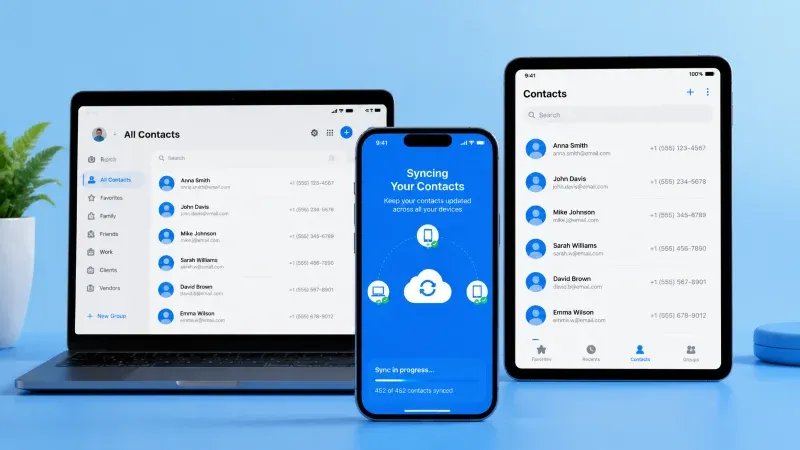
According to the Pew Research Center, Mobile Fact Sheet, 2025, 91% of U.S. adults own a smartphone, and a large share use multiple connected devices daily. That means most people have more than one place where contacts live, and keeping them consistent is a genuine headache.
You switch from your phone to your tablet, open the dialer, and the contact you need is missing. Or it has an old number. Or it shows up three times with slightly different details. These are the symptoms of contacts not actively managed across devices.
Syncing contacts across devices means keeping your address book identical and current on every phone, tablet, or computer you use, automatically through the cloud or manually through file transfers. This article covers the seven best methods, what to watch for, and how to pick the right approach.
What Is the Best Way to Sync Contacts Across Multiple Devices?
The best method depends on which platforms you use, how often your contacts change, and how much automation you want. The seven methods below cover the full range, from fully automatic to fully offline.
1. Use a Cloud-Based Contact Service as Your Foundation
Cloud services like Google Contacts, iCloud, and Microsoft Outlook are the most reliable way to sync contacts across all devices automatically. When a contact changes on one device, the cloud updates every other linked device within seconds.
The key rule: choose one service as your primary account and route all contacts through it. Mixing iCloud on one device and Google on another without a bridge creates duplicates and missed updates.
Cloud contact services by platform:
- Google Contacts: best for Android-first users; also works on iOS via the Gmail app
- iCloud: best for Apple-only setups across iPhone, iPad, and Mac
- Microsoft Outlook: best for Windows and corporate environments
- CardDAV apps: cross-platform compatible and work with multiple providers
2. Turn On Automatic Sync in Your Device Settings
Every major smartphone has a built-in sync setting that keeps contacts current without manual effort. Most people have it available, but have never confirmed it is active.
On Android:
- Open Settings, go to Accounts, then tap your Google account.
- Find Contacts and toggle sync to on.
- Set the frequency to automatic.
On iPhone:
- Open Settings and tap your Apple ID.
- Go to iCloud and enable Contacts.
Once active, contacts restore automatically if you lose or replace a device. This is the single highest-return setting to check first.
3. Merge Duplicate Contacts Before You Sync
Syncing a messy contact list replicates the mess across every device. If you have three entries for the same person before syncing, you will have three on every device after. Clean first, sync second.
Google Contacts flags duplicates and merges them with one tap. For a faster, more thorough cleanup, Sync.me's merge duplicate contacts feature scans your full list and consolidates matching entries automatically. Export a backup before any major merge so you have a restore point.
-1-320x320.webp)
4. Use a Third-Party App to Sync Contacts Between Devices
Third-party apps are most useful for syncing contacts between devices on different operating systems. When evaluating options, look for:
- Cross-platform support (iOS and Android)
- Incremental updates that sync changes only, not the full list each time
- A backup option before the first sync
- Transparent data permissions with no hidden server storage
Sync.me's Contact Sync feature goes beyond basic syncing by enriching contacts with updated photos, job titles, and social media profile links from Facebook, Instagram, LinkedIn, and other platforms. Contacts stay current not just in phone numbers, but in the fuller context of who each person is today.
5. Export and Import Contacts Manually
Manual export and import suits one-time migrations, new device setups, or users who want no cloud involvement.
- Export from your current device. On Android, open Google Contacts and export as .vcf or .csv. On iPhone, export via the Contacts app or iCloud.com.
- Transfer the file via email, cloud storage, or USB.
- Import on the new device through the contacts or settings app.
- Check for duplicates after import, since importing onto a device with existing contacts will create matches.
This method works offline and is the safest option for users cautious about app permissions.
6. Share One Account Across All Your Devices
If all your devices belong to you, signing into one account across all of them is the simplest approach to sync contacts across all devices. One Google account on multiple Android devices, or one iCloud account on iPhone, iPad, and Mac, keeps everything identical with no extra setup.
- Privacy note: shared accounts mean shared contact lists. If a work account is used across multiple employees' phones, every contact stored in it is visible to all of them. For those cases, individual accounts are safer.
7. Audit and Back Up Your Contacts on a Regular Schedule
Syncing is not a one-time task. Over months, contacts accumulate outdated numbers and new duplicates. A contact list that is never audited becomes less reliable even when it syncs perfectly.
A practical audit schedule:
- Monthly: review recently added contacts for complete fields.
- Quarterly: run a duplicate check and merge matches.
- Before platform switches: export a full backup, then proceed.
What Are the Risks of Syncing Contacts Across Devices?
Syncing is reliable when set up correctly, but a few things can go wrong if you skip preparation steps. Here’s what to watch for:
- Accidental overwrite – Sync replaces newer contact data with an older version.
Prevention: Back up before syncing and use incremental sync tools. - Duplicate explosion – Merging two contact sources creates mass duplicates.
Prevention: Clean duplicates before syncing across platforms. - Privacy exposure – Shared accounts give all users access to the same contacts.
Prevention: Use separate accounts for personal and shared devices. - Third-party data access – Some apps store your contacts on their own servers.
Prevention: Check privacy policies before granting contacts permission. - Cross-platform field loss – Notes or custom labels do not transfer between iOS and Android.
Prevention: Test with a small export first to confirm fields carry over.
Each of these risks is preventable with the right preparation. Before any major sync operation, three steps protect you most:
- Export a backup so you can restore if something overwrites unexpectedly.
- Clean duplicates first so you are not multiplying a messy list across every device.
- Review app permissions before letting a third-party tool access your contacts.
The most common real-world problem is duplicate explosion after a platform switch. Handle duplicates before you sync, not after.
The Bottom Line on Syncing Contacts Across Multiple Devices
A contact list that syncs automatically is one you never have to think about. Set it up once, test it across your devices, and your phonebook stays accurate everywhere, whether you are calling from your phone, your tablet, or your laptop.
The method you choose matters less than the habit you build around it. Cloud sync is the lowest-effort option for most people. Manual export works when you want full control. Third-party tools like Sync.me fill the gap when built-in options fall short, especially across different operating systems or when your contacts need more than just a phone number to be useful.
Clean duplicates before syncing, back up before major changes, and run a quick audit every few months. Those three habits prevent nearly every contact sync problem before it starts.
Keep contacts accurate, current, and in sync on every device.
Download Sync.me free and get automatic contact sync, duplicate merging, and profile enrichment in one app.
Frequently Asked Questions
Is it possible to sync contacts between iOS and Android?
Yes, through a shared platform like Google Contacts. Add your Google account in iOS Settings under Contacts, set it as default, and it stays in sync with your Android device. For a one-time transfer, export a .vcf file from one device and import it on the other.
What precautions should I take when using third-party contact syncing apps?
Check the privacy policy to confirm whether the app stores contacts on external servers and for how long. Export a full backup before the first sync runs, and choose apps with transparent permissions and a clear data deletion process.
How often should I audit my contacts to keep them accurate?
A quick monthly review catches incomplete entries. A quarterly duplicate check keeps the list clean. The most important audit moment is before switching devices or platforms, when mismatches are most likely to create sync errors.
Can I sync contacts across devices without an internet connection?
Yes, through manual export and import. Export as a .vcf file, transfer via USB or local Wi-Fi, and import on the other device. This creates a one-time copy rather than an ongoing sync, so repeat the process whenever contacts change significantly.
How does a shared account affect privacy when syncing contacts?
Every contact in a shared account is visible to all signed-in users. For one person's devices, this is fine. For work accounts used by multiple employees, it creates a privacy risk. Individual accounts with role-based access are the safer approach in those cases.
संबंधित पोस्ट
Why You Should Back Up and Sync Contacts Before It's Too Late
Learn how to sync contacts across devices safely, avoid duplicates, and back up your address book. Keep your contacts secure, consistent, and recoverable.
How to Back Up My Contacts: Easy Ways to Back Up and Restore Contacts
Learn how to back up your contacts, restore them safely, and use cloud or manual methods to protect your phone contact data.