Why Are Your Contacts Not Syncing? 5 Common Reasons & Easy Fixes You Can Try
Your contacts are not syncing because something is blocking the connection between your device and the account that stores them, and in most cases, it comes down to a setting, a permission, or where your contacts are actually saved. The good news? It is almost always fixable in a few taps.
According to the Pew Research Center, Mobile Fact Sheet, 2025, 91% of U.S. adults own a smartphone, and many use more than one device at once. That makes contact syncing one of the most practical things your phone does quietly in the background, until it stops working. You add a new number, check another device later, and it is not there. It is frustrating because you did nothing wrong, but something clearly went sideways.
This article covers the five most common reasons why contacts are not syncing, quick fixes for both iPhone and Android, and a few habits that keep sync running reliably going forward.
What Does It Mean When Contacts Are Not Syncing?
Contact syncing is the process that keeps your names, phone numbers, emails, profile photos, and other details consistent across all your devices and apps automatically. When it works, you never think about it. When contacts are not syncing, every missed update becomes a small but real problem: a missed call from an unknown number, an outdated email bouncing back, or a name that still shows as digits on your screen.
The most common sources for contact data include Google Contacts, iCloud, Microsoft Outlook, SIM card storage, your phone's local memory, and contact enrichment apps. One important distinction before we dive in: syncing and backing up are not the same thing. A backup saves a snapshot of your contacts at one point in time. Syncing keeps them live and updated across devices continuously.

5 Common Reasons Why Your Contacts Are Not Syncing
Most contact sync problems fall into one of five categories. Work through each one, and you will likely find the culprit quickly.
1. Contact Sync Is Turned Off
This is the most common reason contacts are not syncing, and the easiest to fix. If sync is simply disabled on your account (Google, iCloud, or Outlook), no updates will move between devices, even if everything else is set up correctly.
The account you are signed into also matters. If you saved contacts under one Google account on your phone and are signed into a different one on another device, they will never match up.
Fixes:
- Check your sync settings. On Android, go to Settings > Accounts > [your Google account] > Account sync, and confirm Contacts is toggled on. On iPhone, go to Settings > [your name] > iCloud and make sure Contacts is enabled.
- Confirm you are using the same account on all devices. A mismatched account is a very common culprit that is easy to overlook.
- Manually trigger a refresh. On Android, tap the three-dot menu inside your account sync screen and choose "Sync now." On iPhone, toggle Contacts off and back on inside iCloud settings.
- Save a test contact and wait a minute. If it appears on your other device, sync is working again.
2. The App Does Not Have Contact Permissions
Apps need explicit permission to read and write your contact data. If that permission was denied when you first installed the app, or was revoked by an OS update, the app simply cannot access your contacts, no matter what its settings say.
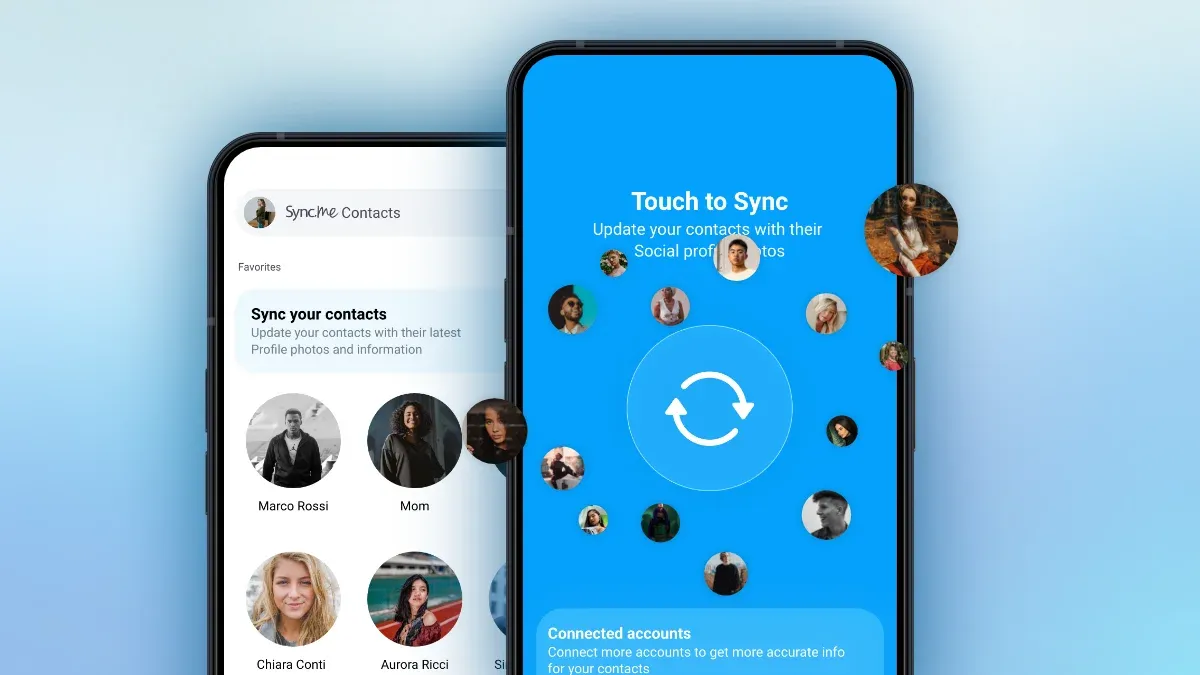
This applies to any app that manages, enriches, or displays contact information. Apps like Sync.me need the right permissions to keep your contact details, profile photos, and caller information current. Without permission, they can see nothing and update nothing.
Fixes:
- Check contact permissions in your phone settings. On iPhone: Settings > Privacy & Security > Contacts. On Android: Settings > Apps > [App name] > Permissions > Contacts.
- Allow contact access for any trusted app that needs it to function properly.
- Restart the app after changing permissions. Some apps only read permission status at launch, so a restart is required for the change to take effect.
- Update the app if syncing still fails after granting permission. An outdated version may have bugs that a newer release has already fixed.
3. Contacts Are Saved in the Wrong Place
Your phone can store contacts in multiple locations at once: on the SIM card, in the phone's local memory, in Google Contacts, in iCloud, or in Outlook. If your contacts are split across these sources, some will sync and others will not, because SIM and local storage are not part of any cloud sync system.
This is one of the trickier causes to spot because your contacts still appear on your current device. The problem only becomes obvious when you switch phones or check another device, and half your address book is missing.
Fixes:
- Check where contacts are saved. On Android, open the Contacts app, go to Settings > Contacts to display, and review which accounts are listed. On iPhone, go to Settings > Contacts > Default Account.
- Move SIM or phone-only contacts to a cloud account. On Android, open Contacts, select all local contacts, and use the "Move to account" option to transfer them to Google.
- Set one default account for all new contacts. This prevents the problem from recurring. On Android: Settings > Contacts > Default account for new contacts. On iPhone: Settings > Contacts > Default Account.
- Merge duplicates after moving contacts. Transferring contacts sometimes creates copies. Learn how to merge duplicate contacts without losing important info once the move is complete.
4. Internet, Battery Saver, or Background Sync Is Blocking Updates
Even when sync is turned on, it needs the right conditions to actually run. A weak connection, data-saving mode, or battery optimization settings can quietly prevent contact sync from completing, sometimes for days.
A contact list that fails to sync in the background is just as broken as one where sync is turned off entirely. The difference is just harder to notice.
Fixes:
- Connect to stable Wi-Fi or mobile data. Sync on a metered or weak connection often fails silently without showing an error.
- Turn off battery saver temporarily. Both Android's Battery Saver and iPhone's Low Power Mode restrict background activity, including sync.
- Allow background app refresh. On iPhone: Settings > General > Background App Refresh. On Android: check individual app battery settings and remove restrictions.
- Disable data saver for contact-related apps. On Android, go to Settings > Network > Data Saver and add your contacts' apps to the "unrestricted" list.
- Restart the phone. A restart clears temporary states and often resolves background sync issues that have no obvious cause.
5. Duplicate or Outdated Contact Data Is Causing Problems
Old backups, multiple accounts storing overlapping contacts, or conflicting data between two cloud sources can all cause sync errors. When the system cannot reconcile two versions of the same contact, it may stop syncing that entry or create confusing duplicates across devices.
This is more common after switching phones, restoring from a backup, or merging two accounts. The contacts are technically there; they just exist in conflicting states.
Fixes:
- Merge duplicate contacts. Google Contacts flags duplicates automatically and lets you merge them with a tap. You can also use Sync.me's contact sync feature for a faster, more thorough cleanup.
- Delete outdated or empty entries. Contacts with no number, no name, or no useful information can still interfere with sync and clutter your address book.
- Remove unused contact accounts. If you have an old Outlook or Yahoo account still linked but no longer active, remove it from your contact sources.
- Re-sync after cleanup. After tidying up, trigger a manual sync to push the clean version across all your devices.
- Use a contact enrichment tool to keep details more accurate going forward. Sync.me automatically updates contact photos, job titles, and social profiles so your address book stays current without manual effort.
What to Do If Contacts Are Not Syncing on iPhone
iPhone contact sync runs through iCloud and is usually reliable once set up correctly, but a few specific things can break it.
Check iCloud Contacts
Go to Settings, tap your name at the top, then iCloud. Confirm that the Contacts toggle is green. If it is off, turn it on and wait a moment for the initial sync to complete.
Confirm Your Apple ID
Go back to the main Settings screen and check which Apple ID is shown at the top. If you have more than one Apple ID and you are signed in with the wrong one, your contacts will not match what is stored in iCloud under your main account.
Review Contacts Permissions
Go to Settings > Privacy & Security > Contacts. Check which apps have access. If the Contacts app itself or Sync.me is listed as "None," change it to "Full Access."
Check the Default Account
Go to Settings > Contacts > Default Account. This should be set to iCloud, not Gmail, if you want new contacts saved to iCloud automatically.
Restart the Device
Hold the side button and a volume button together, slide to power off, wait 30 seconds, and turn it back on. This often resolves background sync issues with no other apparent cause.

What to Do If Contacts Are Not Syncing on Android
Android stores contacts through Google, and most sync issues come from account settings or background restrictions.
Check Google Contacts Sync
Go to Settings > Accounts > Google > [your account] > Account sync. Find Contacts in the list and confirm the toggle is on. If it is off, turn it on and tap "Sync now."
Confirm the Correct Google Account
If you have multiple Google accounts on your phone, make sure the one with your contacts is the active one for sync. Go to Settings > Accounts and review which accounts are linked.
Turn On Auto-Sync
Go to Settings > Accounts and look for the "Auto-sync data" toggle at the top or bottom of the screen. If this is off, none of your accounts will sync automatically.
Allow Background Data
Go to Settings > Apps > Google Contacts > Mobile data & Wi-Fi. Make sure "Background data" is enabled. This lets the Contacts app update even when you are not actively using it.
Clear the Contacts App Cache
Go to Settings > Apps > Contacts > Storage > Clear cache. This removes temporary data that can sometimes cause sync errors without affecting your actual contact list.
Restart the Device
Power off completely, wait 30 seconds, and restart. Background sync issues on Android are often resolved by a full reboot.
How to Prevent Contacts from Not Syncing in the Future
Fixing the problem once is great. Making sure it does not come back is better. These six habits will keep your contacts syncing reliably:
- Use one main account for all contacts. Pick Google or iCloud and route everything through it. Splitting contacts between multiple sources is the single most common cause of recurring sync problems.
- Keep permissions enabled for trusted contact apps. Check periodically, because OS updates sometimes reset app permissions without warning.
- Update apps regularly. Outdated apps are more likely to run into compatibility issues with updated phone software.
- Merge duplicates from time to time. Learn how to organize your contacts to keep your address book clean and sync-friendly.
- Back up contacts before switching phones. Export a .vcf file or confirm your cloud backup is current before you transfer to a new device. Why you should back up and sync contacts before it is too late covers this in detail.
- Review sync settings after major phone updates. iOS and Android updates sometimes change account or permission settings. A quick check after each major update takes 60 seconds and prevents days of frustration.
Most Contact Sync Problems Have a Simple Fix
When contacts are not syncing, the fix is almost always a setting, a permission, or a mismatched account, not a deeper problem with your device. Work through the five reasons above, and you will find the cause in almost every case.
Accurate contacts do more than fill your address book. They help you recognize who is calling, avoid calling the wrong person, and keep your communication organized. When your contacts are not syncing correctly, every unknown number becomes a small friction point you should not have to deal with.
Take a few minutes today to check your sync settings, confirm your permissions, and make sure your contacts are stored in the right place. Your future self will appreciate it.
Download Sync.me free to keep your contacts synced, enriched with photos and social profiles, and automatically up to date on every device.
Frequently Asked Questions
Why do my contacts show as numbers instead of names?
This usually means your contacts are not syncing correctly between your address book and your phone's dialer. Check that your contact sync is enabled and that the same account is active on all your devices. Apps like Sync.me can also help by matching unknown numbers to names using a global caller ID database.
Can I lose contacts if I turn sync off and on again?
No. Your contacts are stored in the cloud account, not solely on your device. Toggling sync off removes them from your local view temporarily, but turning it back on restores them from the cloud. Your data is not deleted by this action.
Why do deleted contacts keep coming back?
This usually happens when the same contact is saved in more than one account or location. If you delete it from one source but the other still has it, sync will restore it. Remove the contact from all linked accounts and set a single account as your default to prevent this.
Is it better to save contacts to the SIM, phone, or cloud?
Cloud storage is the best option for most people. SIM and phone-only contacts do not sync across devices and can be lost if your phone is damaged or replaced. Google Contacts or iCloud keeps your address book backed up and available everywhere automatically.
Can the Sync.me app help keep my contacts more accurate?
Yes. Sync.me enriches your existing contacts with updated profile photos, social media links, and caller information. It also helps identify unknown callers and merge duplicate entries. You can download Sync.me for free on both iPhone and Android to try it.
Articles similaires
7 Best Ways to Sync Contacts Across Multiple Devices
Discover 7 best ways to sync contacts across multiple devices, from cloud services to third-party apps and manual export. Practical methods explained.
Why You Should Back Up and Sync Contacts Before It's Too Late
Learn how to sync contacts across devices safely, avoid duplicates, and back up your address book. Keep your contacts secure, consistent, and recoverable.