How to Enable Caller ID on iPhone and Android: Step-by-Step
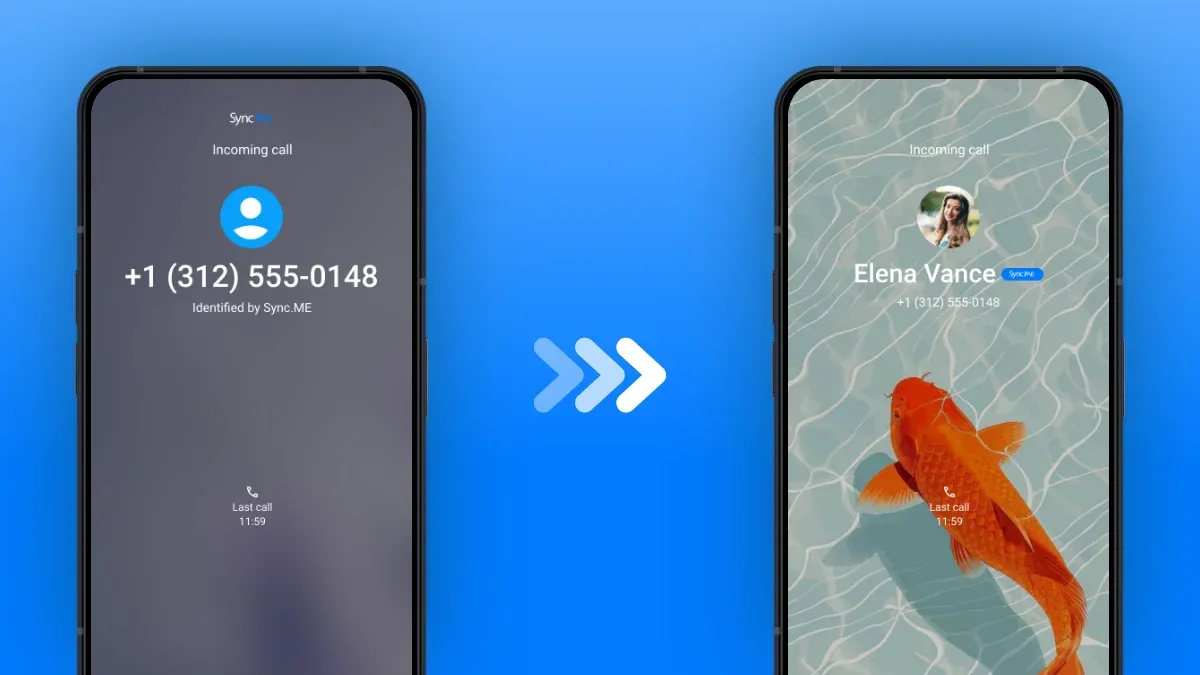
Caller ID is one of the most useful features on modern smartphones. It allows users to see who is calling before answering, helping them decide whether to pick up, ignore, or block a call.
However, many users are unsure how to enable caller ID or why it may not be working correctly on their device. In some cases, caller ID settings may be disabled, limited by network restrictions, or affected by spam and spoofed calls.
Learning how to enable caller ID on Android and enable caller ID on iPhone helps improve call visibility, reduce unknown calls, and make everyday communication more efficient.
This guide provides step-by-step instructions, explains how caller ID works, and offers practical tips to improve caller identification accuracy.
What Caller ID Does
Caller ID is a feature that displays information about an incoming call before it is answered. This information typically includes:
- The caller’s phone number
- The name associated with the number (if available)
- Location or region details
- Spam warnings (in advanced systems)
Caller ID systems work by matching incoming numbers with databases, contact lists, and carrier information.
Modern tools go beyond basic identification. Many systems now include spam detection, caller reputation scoring, and real-time alerts for suspicious numbers.
Caller ID not only improves convenience but also plays an important role in protecting users from unwanted or fraudulent calls.
How to Enable Caller ID
Before diving into device-specific instructions, it’s important to understand that caller ID can be controlled at multiple levels:
- Phone settings
- Carrier settings
- Third-party apps
In most cases, enabling caller ID involves checking that the feature is turned on in your device settings and supported by your mobile network.
If caller ID is disabled at any level, incoming call information may not display correctly.

Enable Caller ID on Android
Enabling caller ID on Android devices may vary slightly depending on the manufacturer and operating system version, but the general process remains similar.
Phone Settings
To enable caller ID on Android, users can follow these steps:
- Open the Phone app
- Tap the menu icon (three dots)
- Go to Settings
- Select “Calls” or “Calling accounts”
- Tap “Additional settings” or “Caller ID”
- Choose “Show number”
This ensures that your number is visible to others and that incoming caller information is displayed when available.
Some Android devices also include options to filter spam calls or identify unknown callers automatically.
Carrier Settings
In some cases, caller ID depends on your mobile carrier.
If the caller ID is not working after adjusting phone settings, users may need to:
- Check carrier settings
- Contact their service provider
- Enable caller ID services through the carrier
Carriers may offer additional features such as enhanced caller ID or spam call filtering.

Enable Caller ID on iPhone
Apple devices provide built-in options for managing caller ID, although the settings are slightly different from Android.
iOS Settings
To enable caller ID on iPhone, follow these steps:
- Open Settings
- Scroll down and tap “Phone”
- Select “Show My Caller ID”
- Toggle the switch to enable it
This setting allows your number to be displayed when making calls and ensures that caller information is shown when available.
Network Support
Caller ID on iPhone also depends on carrier support. If the option is missing or disabled, it may be due to:
- Carrier restrictions
- Network limitations
- Regional settings
In these cases, contacting your carrier can help resolve the issue.
Why Caller ID May Not Work
Even after enabling settings, the caller ID may not always function correctly. There are several common reasons for this.
One major factor is caller ID blocking. Some callers intentionally hide their number, causing the call to appear as “No Caller ID” or “Private Number.”
Another issue is number spoofing, where callers disguise their real numbers. Regulatory authorities such as FCC caller ID and spoofing guide explain that spoofing allows callers to falsify caller ID information, making identification more difficult.
Additional reasons include:
- Outdated phone software
- Network compatibility issues
- Missing carrier support
- Incorrect device settings
Understanding these limitations helps users set realistic expectations for caller ID performance.
Tips to Improve Caller ID
While enabling caller ID is important, additional steps can improve its accuracy and effectiveness.
One effective approach is using advanced caller identification tools. Services such as caller ID apps enhance standard caller ID by using large databases and real-time analysis to identify unknown numbers.
Other useful tips include:
- Keep your phone software updated
- Save frequently contacted numbers
- Enable spam detection features
- Report suspicious numbers to improve detection systems
- Avoid answering calls from unknown or suspicious sources
Using multiple layers of identification helps ensure that incoming calls are properly identified.
Key Takeaways: How to Enable Caller ID and Improve Call Identification
Learning how to enable caller ID is essential for managing incoming calls effectively. Whether using Android or iPhone, enabling the correct settings ensures that caller information is displayed whenever possible.
Understanding how to enable caller ID on Android and enable caller ID on iPhone helps users reduce unknown calls and improve communication efficiency. While some limitations exist due to privacy settings and spoofing, combining built-in features with external tools can significantly improve results.
By enabling caller ID, using trusted apps, and following best practices, users can gain better visibility into incoming calls and reduce the risks associated with unknown numbers.
Articles similaires
How to Get Caller ID: Identify Unknown Numbers on Your Phone
Learn how to get caller ID, identify unknown callers, and improve caller identification using phone settings, apps, and lookup tools.
How to Find the Owner of a Phone Number: 7 Proven Methods
Learn how to find the owner of a phone number using 7 proven, legal methods. Compare free and paid lookup tools to identify unknown callers safely.
How to Identify No Caller ID: Who Is Calling from a Hidden Number?
Learn how to identify no caller ID calls, understand why hidden numbers appear, and discover tools and strategies to manage anonymous callers safely.